

Corporate network running slow? How to diagnose the cause
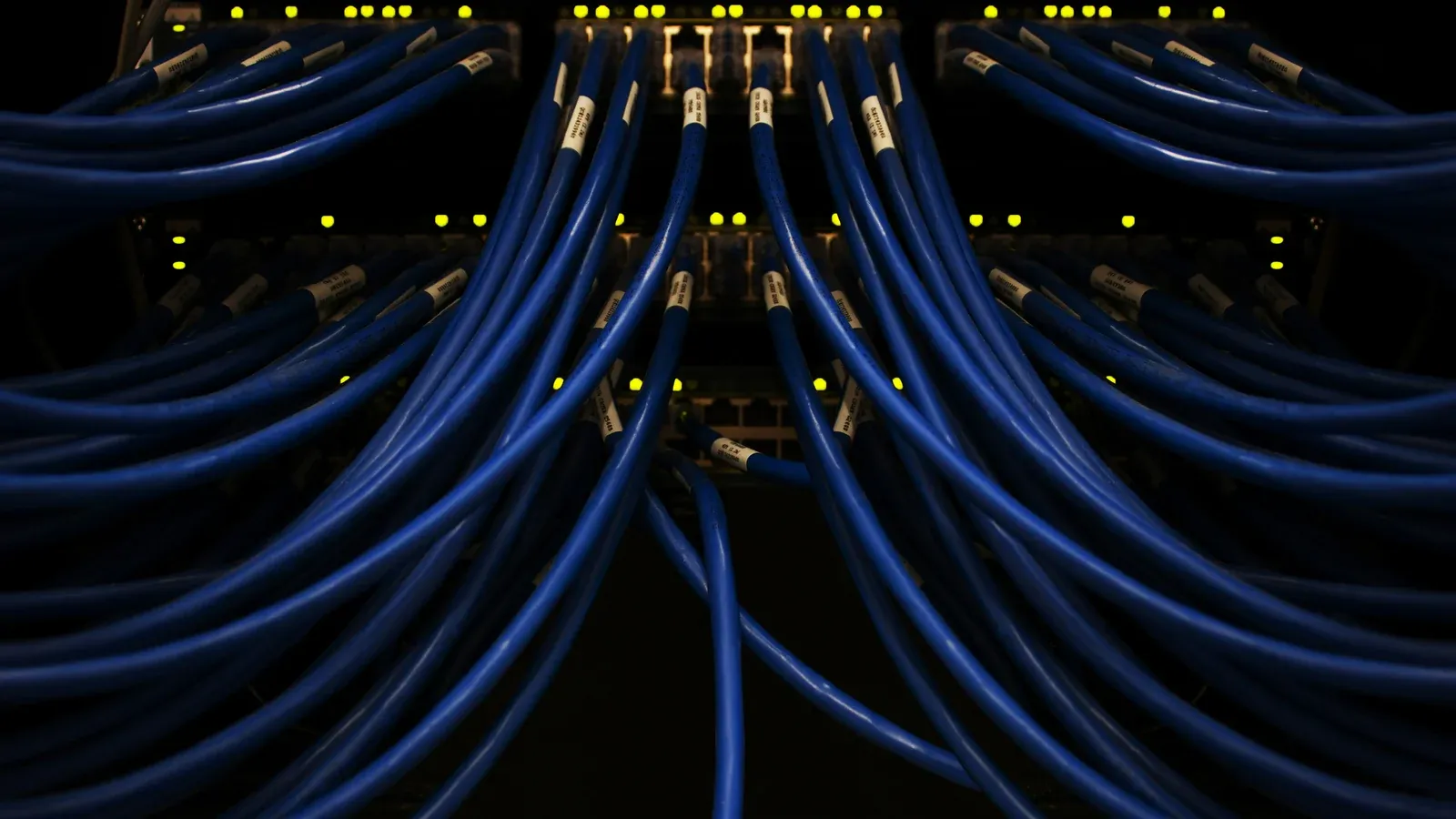
"Network is slow" is a symptom, not a diagnosis. A slow network in a company is caused by one of three layers, so before you replace the router or buy access points, it is worth determining in which of them the problem actually occurs. This article walks you through a sequence that saves you money: from clarifying the symptom, to separating the layers, to when purchasing equipment makes sense.
“Slow” means at least four different things
The first step of diagnostics does not require any equipment, but requires clarification of the symptom, because one word covers problems with completely different causes.
Small transfer means that files take a long time to copy and the download is slower than it should be. High latency gives a different picture: transfers can be decent, but voice calls are interrupted, the remote desktop is sticky, and websites respond with a noticeable delay. Connection disconnection is when the device loses the network for a few seconds and then comes back, which overall looks like "slow" but is actually a stability problem. Finally it happens one particular thing is slow, for example a storage system or a network drive, while the rest works fine.
This last case is important because very often it does not involve the network at all. If one application runs slowly and other services work normally, the cause is usually on the server, database or program itself, and replacing the switch will not fix it.
So before anyone touches the equipment, it's worth writing down four things: co runs slowly, where in the building, when (fixed time, full office, all the time) i on how many devices. This description alone weeds out most false leads.
Slow company network: three layers where to look for the cause
The corporate network is not one device, but a chain, so diagnostics involve cutting off subsequent links until the one that actually limits the result remains.
| Layer | What remote support | Typical symptom |
|---|---|---|
| Link and edge | operator service, gateway, NAT, firewall | everything and everywhere is allowed, even via cable |
| Wired local network | cabling, sockets, patch panels, switches, PoE power supply | allowed in one place or on one track |
| Wi-Fi | access points (access points), channels, signal level, number of clients | wirelessly, normally via cable |
Access point (access point) is a device providing a wireless network, which should not be confused with a router, although in small companies both functions are sometimes enclosed in one housing.
The simplest test to separate these layers is also the most often omitted: connect the laptop with a cable to the same switch and repeat the measurement. If the cable is good, and after Wi-Fi is bad, the layer of the link and wiring is no longer suspicious. But if the cable is bad too, the problem is deeper and the antenna shift will not change.
Wi-Fi: most common symptom source in the office
In offices, most "network is slow" reports concern the radio layer, where it is worth knowing three mechanisms because each of them gives a different picture.
Airtime occupied
Wi-Fi networks operate on a shared medium in which one device is transmitting at a given time and on a given channel while the others are waiting, so each client takes up a portion of the available airtime.
This explains the most confusing situation for users, i.e. full bars on slow-loading pages. The bars describe the signal level, not how much free time is left in the air.
In fact, antenna time is not eaten only by large transfers; it is also eaten by devices that connect to the lowest speeds, neighbouring networks working on the same channel and their own access points set too close to each other on the same frequency, which is sometimes the consequence of adding another AP “just in case”.
Client holding on to a weak signal
The client device itself, not the network, decides when to switch to another AP, so a laptop moved to a conference room can stick to its former AP at the edge of the range instead of moving to a closer one.
Network management platforms provide mechanisms to correct this, primarily a minimum signal level threshold beyond which the client is disconnected and band steering. However, both functions must be selected for a specific object, because if set too aggressively they cause disconnections, which is the symptom they were supposed to eliminate.
Location of access points
The result is determined by the location and radio conditions more than the device model, so an access point hidden in a closet, in a corner or behind a sheet metal partition will perform worse than a cheaper one installed in the right place.
For the same reason, adding equipment without measurement may be ineffective, and in a network where busy airtime is a problem, another access point operating on the same channel even worsens the situation.
Wired layer: problems you can't see
The belief that a cable either works or doesn't work is the most common and misleading assumption in all diagnostics, because the Ethernet path has intermediate states and these are the ones that generate the "slow" symptom.
Lower speed negotiation happens when a port that should be running at 1 Gbps settles at 100 Mbps due to a bad pair, bad termination, or a faulty patch cord. Everything then works, just ten times slower, making it the most common "invisible" problem in older installations, and also the easiest to detect if anyone looks at the state of the ports.
Transmission errors and retransmissions appear on a noisy path that allows traffic to pass through, but forces the repetition of some frames, so the symptom is uneven transfer and increasing delay under load, not a lack of connection.
Badly routed section, i.e. a route running along the power supply, bent too sharply or ending without maintaining the twist of the pairs, gives worse parameters than the cable category would suggest.
Network loop, created when a cable is plugged into the same network with both ends, can load the entire office, causing a sudden symptom and affecting everyone at once.
PoE power budget matters because the switch that powers access points and cameras has a finite budget, and a device powered at its boundary can reboot cyclically, which the user reports as "Wi-Fi disappears and comes back." It's also worth remembering that IEEE 802.3af, 802.3at, and 802.3bt compliant power is negotiated between the switch and the device, while the older constant voltage passive power does not negotiate anything and is not interchangeable with them.
All these cases have one thing in common: none of them can be determined by looking at the cable. Each requires checking the path and reading the status of ports on the switch side, which determines the boundary between a managed and unmanaged network and is the moment when this difference ceases to be theoretical.
Link and edge
If it is allowed everywhere, including cable, the edge layer is checked, starting with the actual link bandwidth measured directly behind the operator's device, not from a random laptop in the office. Next, it's worth determining whether bandwidth is being saturated by a single task, such as cloud backup, file sync, or mid-day updates, and whether the edge device is running with traffic inspection features enabled.
Separately, it's worth checking whether the problem occurs at regular times, because the time of day is a particularly useful clue here: a symptom that returns at the same time every day is almost never a hardware fault, but a task triggered by a schedule that no one remembers about.
Order that saves you money
- Specify the symptom: what, where, when, on how many devices.
- Repeat the measurement across the cable in the same place that separates Wi-Fi from the rest.
- Measure the link directly behind the operator device.
- Check port status and negotiated speeds on the switch.
- Check radio conditions where the problem is reported.
- Only then should you consider purchasing equipment.
The reverse order, where purchase precedes diagnosis, is expensive and often ends with the same symptom on the new device.
When you do it yourself and when you need someone from outside
The honest answer is this: the first three steps can be done by anyone who has a laptop and a cable.
You can handle it on your own if the symptom is clearly localized, for example it affects one room or one workstation, if you have access to the network devices panel and can read the port status, and if the problem appeared after a specific change that can be undone.
It is worth using someone from outside when the network has no documentation and no one knows which cable leads where, when the devices are unmanageable, which means there is no way to read the port status, when the symptom concerns production or warehouse work and every hour costs money, or when diagnostics requires measuring the tracks rather than just observing them.
What do you get after a network audit
An audit that ends with "hardware needs to be replaced" is not an audit. A reliable result is a document that remains in the company regardless of who ultimately becomes the contractor, and which contains a description of the symptom along with an indication of the layer in which it actually arises, measurement results including throughput, port condition and speeds and radio conditions at the reporting locations, a list of causes ranked by impact rather than repair price, separation of what can be improved with configuration from what requires effort, and an indication of what will become the bottleneck after the current bottleneck is removed.
Diagnosis is the first step, not the whole thing
Diagnosis solves today's symptom, but does not prevent it from coming back.
A network in which no one looks at the status of devices returns to its initial state within a dozen or so months because devices are added, the layout of rooms changes, neighboring networks increase, and the firmware remains in the version from the day of implementation. That's why at NexaIT we treat diagnosis as the first stage of the cycle, and not as a service in itself.
We can conduct the audit ourselves and provide the result, also if the company has its own IT specialist. We can also provide constant care to the environment, monitoring the condition of devices and connections, updating within agreed service windows, handling requests and maintaining documentation in a state consistent with reality, while the scope and response times are recorded in the contract. We perform most of the work remotely, and we arrange on-site work separately.
It is worth distinguishing between two things that are sometimes confused: response time is the moment when someone starts dealing with the report, however repair time is where the problem disappears. They are not the same and should be described separately in the contract.
What to prepare before the interview
Before contacting us, it is worth having a description of the symptom according to the four questions from the beginning of the article, a plan or sketch of the office with marked places where the problem occurs, information about where the rack with network devices is located and whether there is access to it, a list of work-critical devices and knowledge about whether there is documentation of the installation and marking of points.
The more of this that is available, the shorter the fact-finding phase becomes, and the longer the actual cause-seeking phase becomes.
If you want someone to complete this path for you one by one, we deal with it as part of building and maintaining corporate networks, and if the network is to be maintained after the cause is removed, the appropriate scope is constant IT care.
Book a free IT review: in an hour online we will determine from which layer to start diagnosis.