

NCrewline 2.3 · operations system by NexaIT
KPIs and huddles, that end in a decision.
Crewline replaces manually transcribed KPI boards and slides rebuilt from scratch before every meeting. KPIs from the plan and actuals calculate themselves, the huddle opens with a conclusion, a red KPI leads to root-cause analysis, and an action with an owner and a due date does not disappear between meetings.
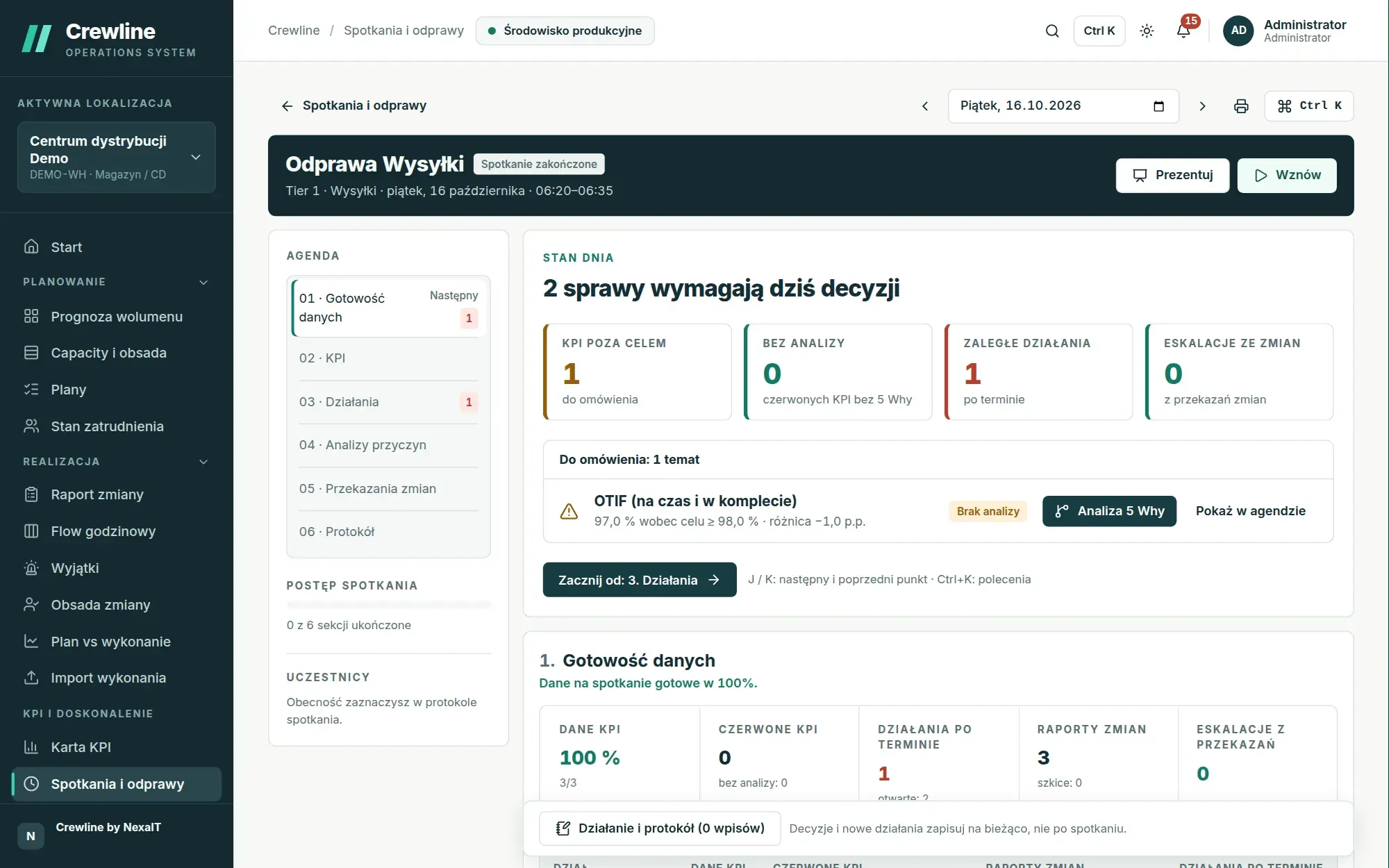
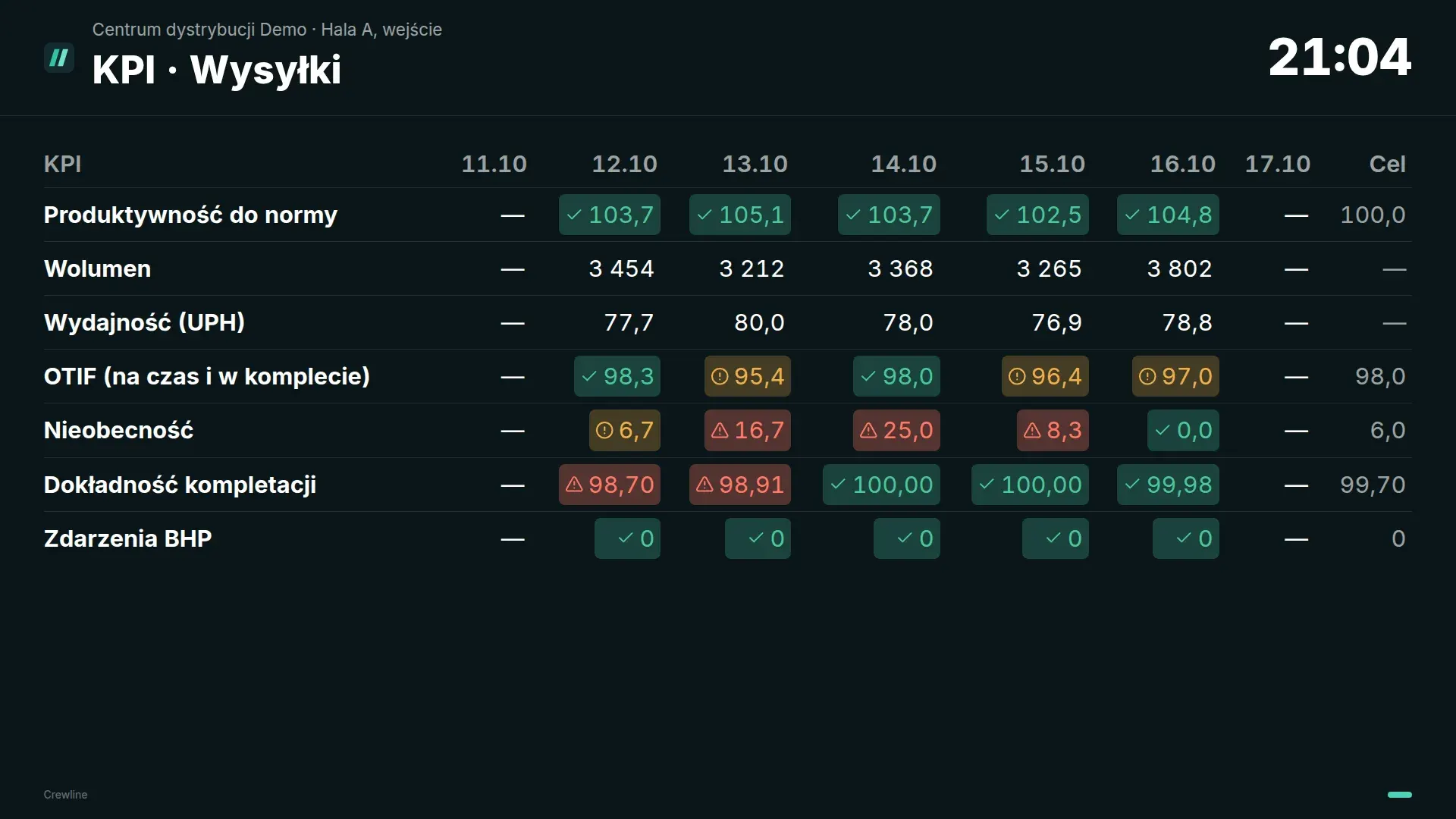
KPI sheet: manual, calculated and system KPIs in one sheet.
Every KPI is one of three kinds. A manual KPI is filled in by hand or by import, a formula KPI is calculated from other KPIs, and a system KPI fills in automatically from the plan and actuals, for example volume, UPH, productivity against standard, hours plan attainment, absence, labour cost per unit or forecast error.
The sheet shows a week day by day, eight weeks or six months, with a target column and summaries such as the seven-day average or the total since Monday. Cell colour always comes with an arrow and a word, so even someone who cannot distinguish colours can read a KPI’s status. A dot in the corner of a cell marks a comment.
- catalogue of 21 ready-made definitions in SQDCP groups: safety, quality, delivery, cost, people
- breakdowns, e.g. by shift or stream, with an automatic total
- fixed and periodic targets, plus a tolerance beyond which a value turns orange
- draft entries stored in the browser until you save them
- button to move a deviation to the tier 1 huddle
Formulas and the KPI tree without a developer.
You define a calculated KPI with a formula that can reference other KPIs, including those from other departments, a specific breakdown, the previous period, the average or total over recent periods, and the target. The editor checks the formula as you type and states plainly what is wrong: an unclosed bracket, an unknown KPI code or a loop between formulas.
The KPI tree shows the dependencies from an executive KPI down to the process, for example cost per unit with labour cost and productivity beneath it, together with the status of each KPI on the selected day. By expanding a branch, a manager can trace within seconds where a deviation originated.
- IF, ROUND, SUM, AVG, MIN, MAX, ABS and TARGET functions
- time modifiers: previous period, average and total over N periods, week-to-date total
The huddle as the story of the day, from conclusion to decision.
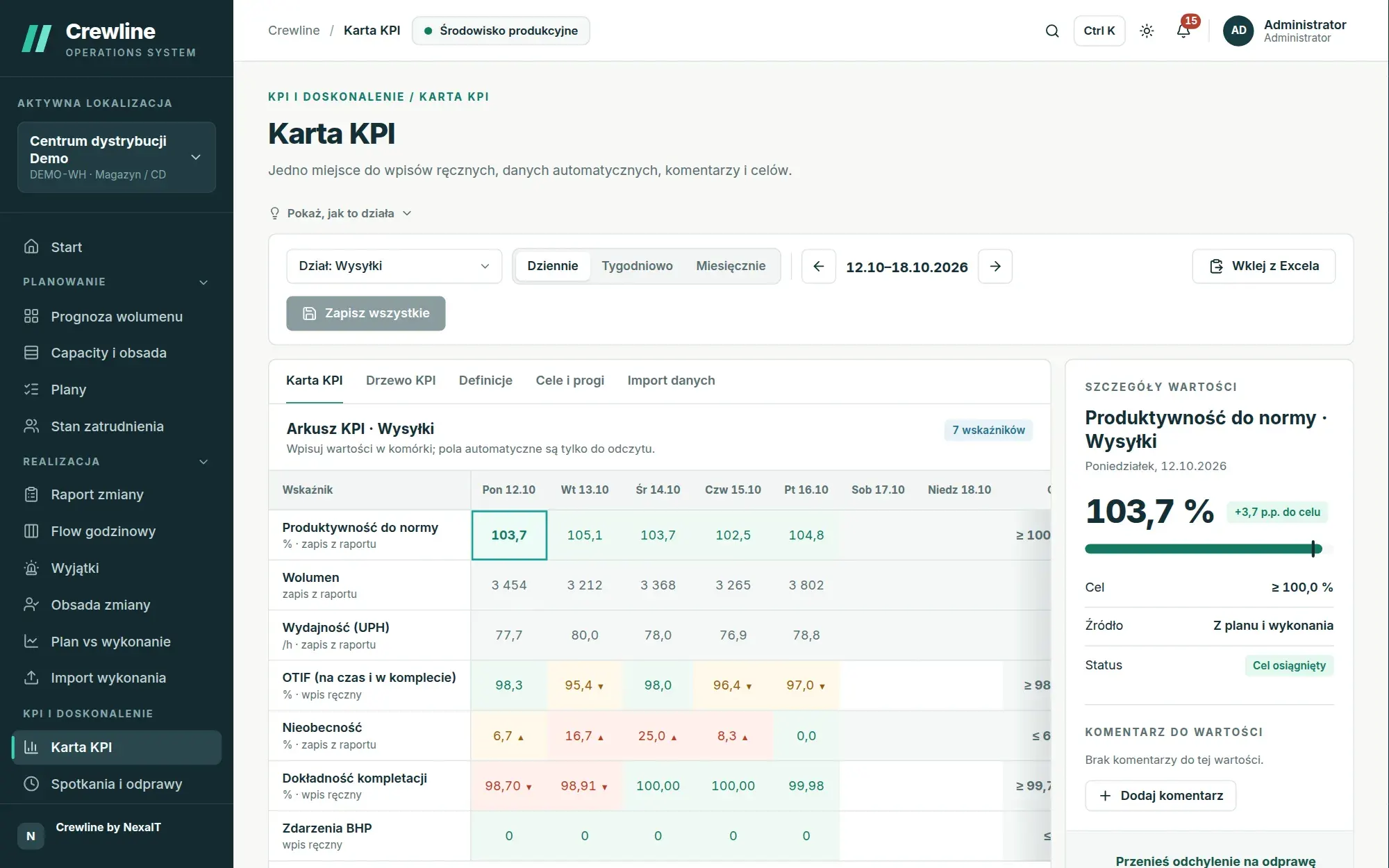
Every meeting opens with “Day status”: a single sentence, for example “2 issues need a decision today”, four numbers, namely KPIs off target, KPIs without analysis, overdue actions and escalations from shifts, and a list of topics to discuss with each value against its target. The “Start with” button points to the first chapter that needs a decision.
The agenda then guides everyone chapter by chapter through a single document, and each chapter opens with a conclusion sentence, such as “2 of 3 KPIs off target: discuss and analyse”. When the facilitator starts the meeting, the numbers are frozen so that everyone discusses the same values, and moving to the next chapter advances the meeting on every participant’s screen at the same time.
- tier 1 huddles for departments, tier 2 for sites and tier 3 for the management board
- agenda made up of sections: data readiness, KPIs, actions, root-cause analyses, lists, shift handovers and minutes
- minutes with decisions and notes recorded during the meeting
- day readiness: how many KPI values have been entered and how many shift reports sent
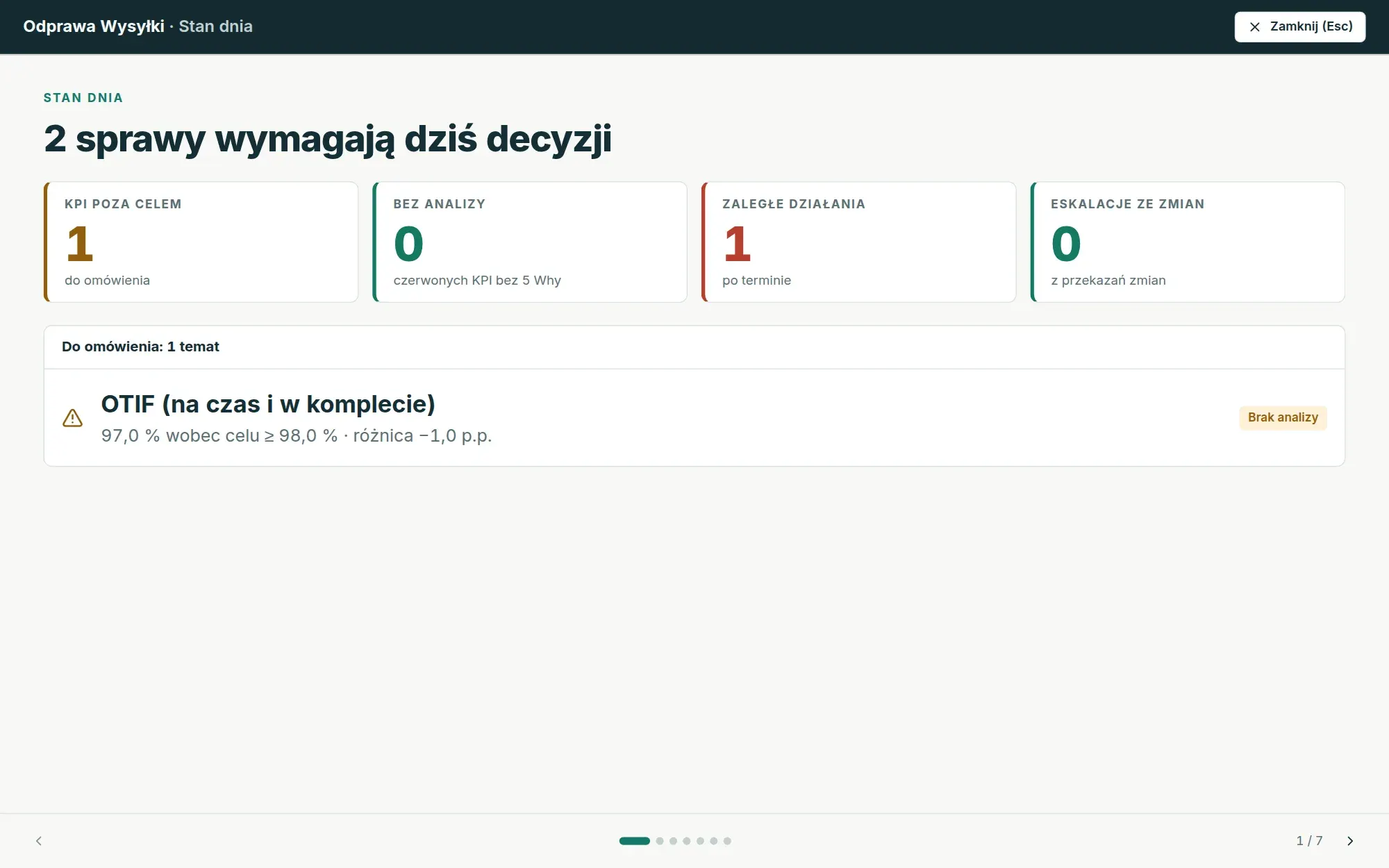
Present mode for the projector and the TV in the meeting room.
A single button switches the huddle to full-screen presentation mode, without the application menus. The first slide shows the day status, and the following ones correspond to the agenda chapters. Each slide has a fixed width and is scaled to the screen, so it looks identical on a laptop, a projector and a large TV, with nothing falling out of place.
You move between slides with the arrow keys, the J and K keys or a presentation clicker, and a clock and the meeting duration are shown at the top. The huddle can also be printed on A4 when there is no screen in the room.
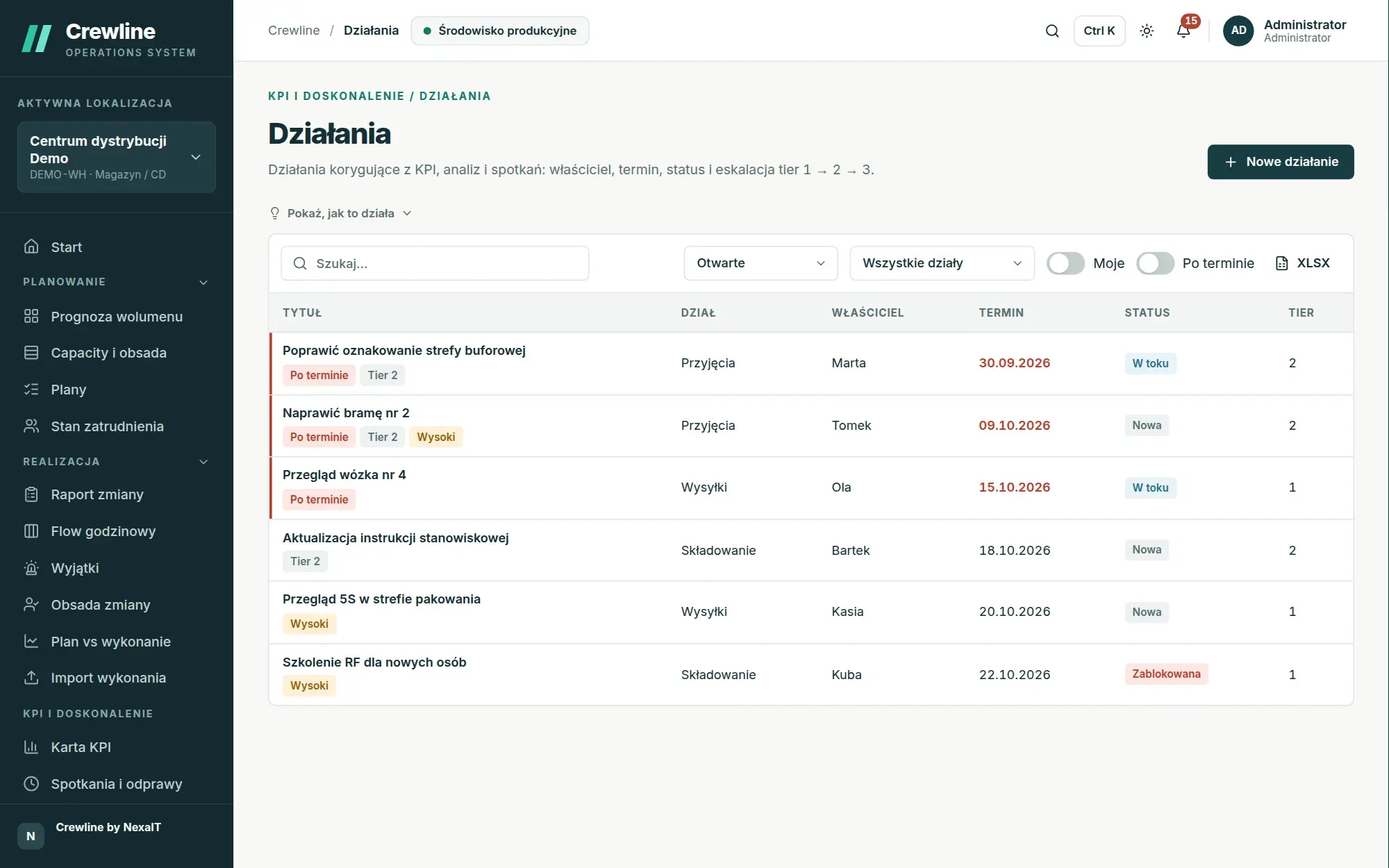
From a red KPI to an action that does not get lost.
Every KPI off target has a 5 Whys analysis button that opens an analysis with the problem description pre-filled for that day and department. The chain of “why” questions leads to the root cause, and from the saved analysis you create a corrective action with a single click, linked to the analysis and the KPI.
An action has an owner, a due date, a priority and a tier level. Open actions carry over automatically to subsequent huddles with a “Carried over” badge, they can be escalated from tier 1 to tier 2 and tier 3 with a stated reason, and actions more than a set number of days late are escalated by the system itself, which also reminds their owner about them every day.
- actions added from the meeting’s bottom bar without leaving the huddle
- “Mine” and “Overdue” filters, list export to XLSX
- notifications in the app, by email and in Microsoft Teams, Slack or Google Chat
Custom lists and shop-floor boards.
Custom lists are registers you define yourselves, for example a register of damaged pallets or of health and safety incidents, with text, number and date columns, and columns for choosing from a list or selecting a person. Entries can be tied to a day or be permanent, search covers all lists at once, and a list can be added as a huddle section.
On TVs on the shop floor, Crewline displays boards without sign-in: day readiness, department KPIs, the Flow for the current shift and open actions. A board link works like a key, can have an expiry date and can be revoked with a single click, and the boards refresh themselves after every KPI entry and shift report, as well as every minute.
Questions about Crewline: KPIs and huddles.
Do KPIs have to be re-entered manually from other systems?
No, system KPIs such as volume, UPH, productivity against standard, hours plan attainment or absence are calculated automatically from the plan and actuals. You enter manually only what no system knows, and the remaining values can be imported from a file or sent via the API.
What are tier 1, tier 2 and tier 3 huddles?
They are levels of daily meetings: tier 1 is the team or department huddle, tier 2 the site huddle and tier 3 the management board meeting. Issues that cannot be resolved at a lower level are escalated to a higher one, and Crewline makes sure open actions carry over from meeting to meeting.
Can a huddle be run on a projector?
Yes, present mode opens the huddle full screen as slides scaled to any screen, advanced with the arrow keys or a presentation clicker. Participants’ screens follow the presenter, and the huddle can also be printed on A4.
How many ready-made KPIs does Crewline include?
The catalogue contains 21 ready-made definitions in SQDCP groups: safety, quality, delivery, cost and people. KPIs added from the catalogue are ordinary definitions you can change freely, and you can create your own KPIs from scratch, including with formulas.
Can someone who cannot distinguish colours recognise a KPI that is off target?
Yes, in Crewline colour is never the only signal: a value off target carries an arrow or a warning marker, and the cell tooltip describes the status in words, for example “Below target”.
Online demo · no obligation
See Crewline live, using your own processes as the example.
- Online demoWe walk through the full cycle on demo data from a distribution centre and an assembly plant, then ask about your processes, your shifts and the spreadsheets you plan in today.
- QuoteWe quote the licence, deployment and optional support for your company in a single offer, prepared after a conversation about scope.
- Installation and configurationA server on your network or one you rent in the cloud, an industry template, processes, process flows, standards and data migrated from your spreadsheets.
- Go-live with your teamThe first plan, the first huddle and training for planners, shift leaders and managers on the screens they will be using.